

.png)
.png)
If you manage more than 200 SKUs or juggle 10+ open POs, spreadsheets usually stop working. I’d switch to a simple system: clean SKU and supplier data, set reorder points and safety stock, let software build draft POs, and review them once a week before sending.
Here’s the short version:
- I use available stock, not on-hand stock, to decide when to reorder
- I include lead times, MOQ, case packs, and landed cost
- I set reorder points with sales velocity plus a stock buffer
- I check for stock transfers between locations before buying more
- I let the system create draft POs by supplier
- I keep a weekly review routine instead of constant spreadsheet checks
A few numbers from the article stand out:
- Manual inventory work can lead to 5% to 15% count variance in 90 days
- Structured receiving can push inventory accuracy to 97%+, versus 85% with manual methods
- Automated PO creation can cut purchasing admin time by 50% to 70%
- A weekly review can take under 35 minutes instead of 6–8 hours per week
What matters most is simple: good inputs drive good orders. If SKU data, supplier rules, inbound stock, and lead times are off, the PO suggestions will be off too. But if those inputs are clean, you can reorder with less guesswork, fewer stockouts, and less dead stock sitting on the shelf.
That’s the core idea of this article: replace spreadsheet math with a repeatable PO workflow that your team reviews, approves, receives, and updates in one place.

Manual vs. Automated Inventory Management: Key Stats
How to Automate Forecasting and Purchase Order Creation for your Shopify Store

sbb-itb-f0fc809
Step 1: Set up the data that purchase order automation depends on
Once the workflow is mapped out, the next job is making sure the inputs are solid. Purchase order automation only works when SKU, supplier, cost, and stock data are clean and consistent.
Clean SKU, supplier, and cost records in Shopify and Forstock
Each variant needs its own SKU, barcode, and supplier link. That’s how the system matches the right item during reordering and receiving. If barcodes are missing, receiving can’t match items with enough accuracy.
If you buy in packs but sell single units, unit-of-measure conversion has to be set up the right way. Miss that detail, and the system can overbuy by 1,200%.
Add lead times, minimums, case packs, and supplier order rules
After SKU and supplier records are cleaned up, the next layer is purchasing rules. These are the settings that tell the system how to buy:
- Lead time - include processing, transit, and receiving time
- Minimum order quantity (MOQ) - the smallest quantity a supplier will accept
- Case pack multiples - the quantity increment the system needs to round up to
- Primary and secondary supplier rules - for critical SKUs, the system can switch to a backup supplier if the primary misses acknowledgment or goes past the lead-time limit
For lead times, use the 90th percentile of past lead times instead of the average. That gives reorder points some breathing room when delays hit.
Confirm location-level stock, inbound quantities, and sales velocity
Automation should trigger from Available stock, not On Hand. Available stock already subtracts committed orders. Open purchase orders should also appear as incoming inventory, so the system doesn’t suggest duplicate orders.
For sales velocity, use the last 30–90 days of sales data for stable products.
| Input | Where It Lives | Review Frequency |
|---|---|---|
| SKU & Barcode | Shopify Admin | Once at creation |
| Available Inventory | Shopify / WMS | Daily (real-time sync) |
| Sales Velocity | Shopify Analytics | Monthly |
| Supplier Contact & Terms | Forstock | Quarterly |
| Lead Time (90th percentile) | Forstock | Quarterly (based on last 10 POs) |
| MOQ & Case Packs | Forstock | Every 6 months |
| Safety Stock / Reorder Point | Forstock | Monthly / seasonal |
| Landed Cost (Freight + Duty + Handling) | Forstock | Per shipment |
Use landed cost, not just the supplier price, if you want margin reporting to stay accurate. Skip that, and margins can look 15% to 30% higher than they are.
Once these fields are in good shape, Step 2 can start calculating reorder points and order quantities automatically.
Step 2: Define the reorder rules that tell the system when to buy
Once your data is clean, the next job is simple: turn those numbers into rules the system can use without guesswork.
Set reorder points, safety stock, and target days of stock
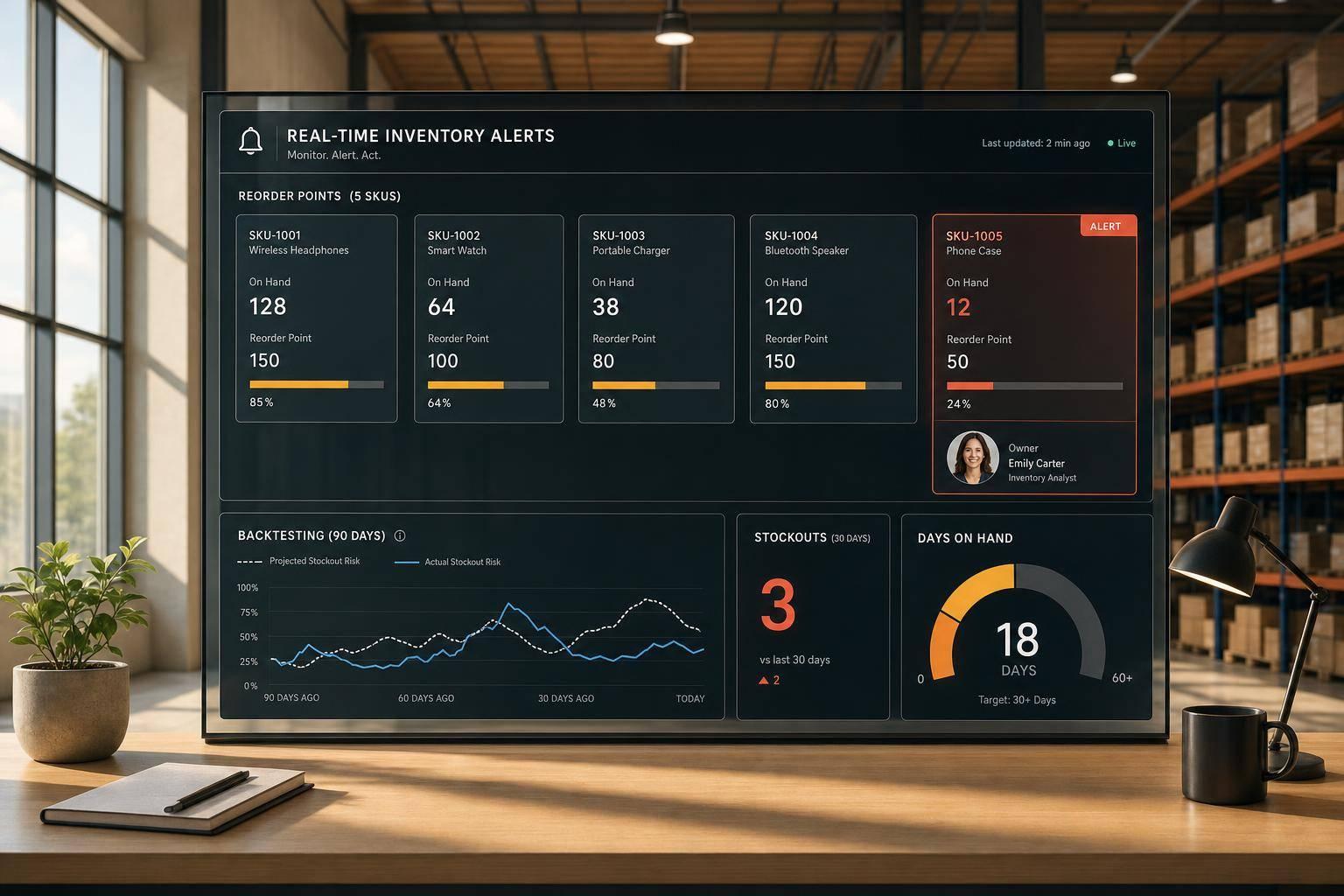
The reorder point tells the system when it's time to buy again. The standard formula is average daily sales × supplier lead time + safety stock.
Here’s the basic math:
10 units/day × 21-day lead time = 210 units before safety stock.
Safety stock gives you a buffer when demand jumps or suppliers run late. The formula is (max daily sales - average daily sales) × max lead time.
For example:
15 vs. 10 units/day over 28 days adds 140 units, for a 350-unit reorder point.
That means your reorder point isn’t just based on normal sales. It also leaves room for the messy stuff that happens in the real world.
Your target stock coverage is a separate setting. A 30-day target, for example, tells the system to refill inventory back to about 30 days of expected demand. Those numbers then feed straight into automated draft PO generation.
After the quantity rules are set, the system can turn demand into order amounts a supplier will actually accept.
Convert suggested quantities into supplier-compliant order quantities
A reorder signal doesn't mean the raw quantity is ready to send. It still needs to match supplier rules.
Start with case packs. If a supplier ships in cases of 24 and the system suggests 200 units, the order rounds up to 216. Then apply MOQ rules. If the needed quantity falls below the supplier minimum, the system bumps it up on its own .
Sea freight adds another layer. You also need to track container fill rate. If the container is only partly full, it can make sense to increase the order to lower freight cost per unit.
Supplier grouping matters here too. When SKUs are grouped by supplier into one PO, it becomes easier to hit MOQ levels and keep freight costs down .
Choose between warehouse-level and location-based reorder rules
The right setup depends on how many locations you run.
If you use one warehouse or one 3PL, a single rule set often works fine. In that case, reorder points are based on total network demand against total available stock.
If you run multiple Shopify locations, things change. Sales speed can look very different from one site to another, so reorder points should change too. One store might need a 50-unit ROP for a SKU, while a smaller location only needs 5.
The Inspiration Company does this by tracking product demand by location and restocking each store before it runs out.
There’s one more check worth building in: before the system creates a new PO, it should look across the network for extra stock. If another location already has units sitting on the shelf, a transfer order is often the better move than buying more.
| Scenario | Recommended Approach |
|---|---|
| Single warehouse or 3PL | Warehouse-level ROP based on total network demand |
| Multiple retail locations | Location-specific ROPs with local sales velocity |
| Overstock in one location, shortage in another | Stock transfer order before generating a new PO |
| Omnichannel: use location-level accuracy and exception workflows | Location-level accuracy required; exception workflows needed |
Once these rules are set, Step 3 links Shopify and supplier records so the system can create the draft PO.
Step 3: Configure automated purchase orders in Shopify and Forstock
With reorder rules in place, the next move is simple: let the system turn those rules into draft purchase orders.
Connect Shopify data and supplier records to Forstock
Forstock connects to the Shopify Admin API and pulls in products, locations, inventory, and sales history. After the Shopify sync runs, Forstock uses that data to show reorder signals and prepare draft POs.
Review reorder suggestions and generate draft POs by supplier
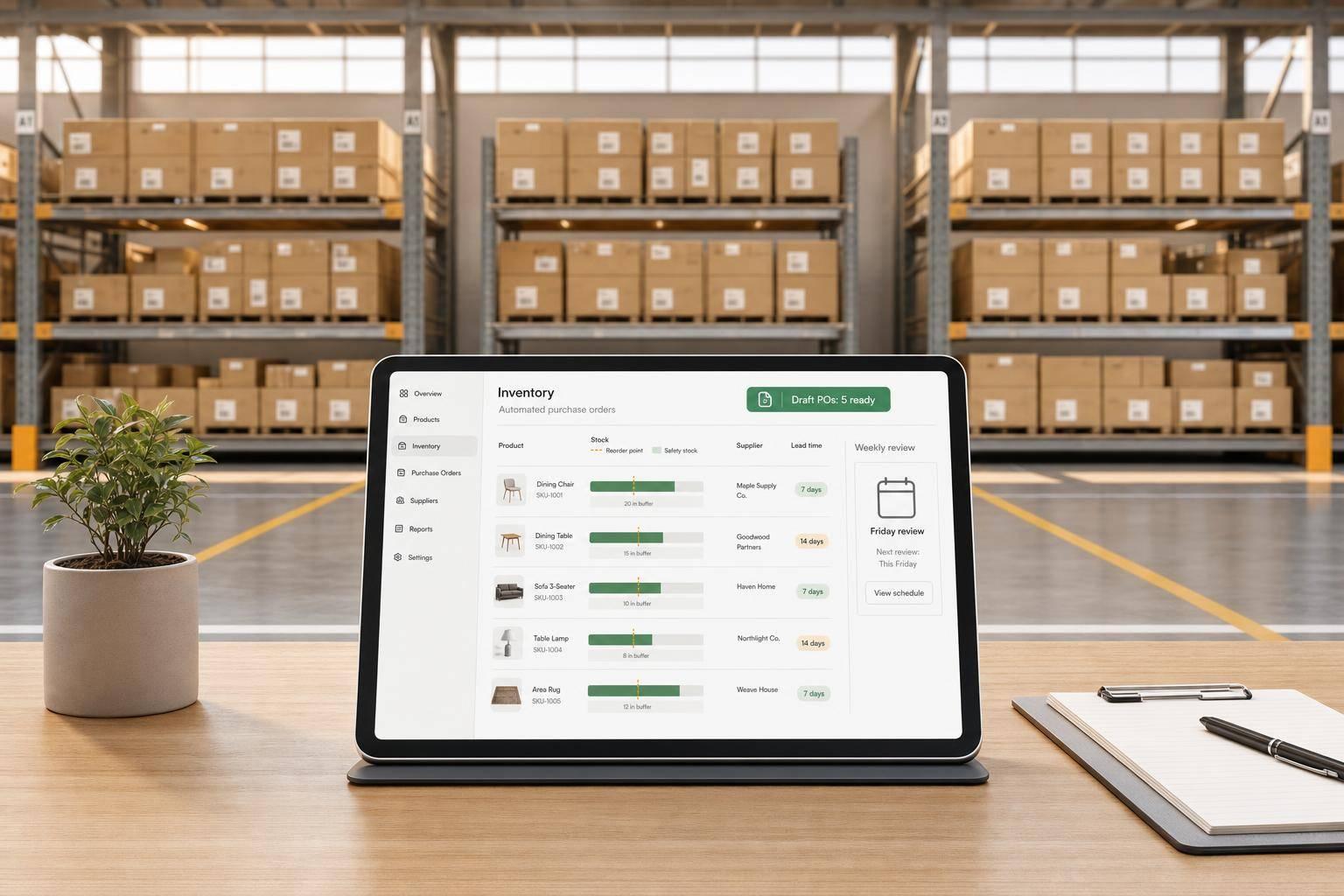
When a SKU drops past its reorder point, Forstock flags it, groups items by supplier, rounds quantities to case packs, and builds draft POs with SKU-level detail, supplier order units, and expected arrival dates.
Generating the PO takes one action. From there, hold each draft for 1 to 4 hours before sending. That short pause gives buyers time to catch odd quantities, late changes, or supplier issues before anything goes out.
Merchants that automate PO creation this way report a 50–70% reduction in time spent on purchasing administration per buying cycle.
Send, update, and receive purchase orders without a spreadsheet
After review, POs can be sent to suppliers as a PDF, CSV, or through EDI. Once sent, the PO is marked "Incoming" in Shopify and Forstock.
At receiving, scan units against the PO, post partial receipts, and keep the remaining balance open. That makes it much easier to catch short shipments and wrong items before the truck leaves. It also cuts down on the messy back-and-forth that comes with manual receiving.
Once the full order is received and reconciled, the PO closes. Forstock then updates inbound and on-hand quantities automatically, which resets the numbers for the next reorder cycle.
This kind of structured receiving keeps counts tighter than manual workflows. Companies using this approach reach 97% or higher inventory accuracy, compared to 85% for manual methods.
Once PO creation and receiving are automated, the last step is keeping the process on a weekly review cycle.
Step 4: Maintain the workflow so spreadsheets stay out of the process
Once draft POs are automated, the job changes. At that point, purchasing becomes a weekly review process plus exception handling, not a never-ending spreadsheet chore.
Use a weekly purchasing routine instead of ad hoc spreadsheet checks
If you want to slide back into spreadsheets, there’s an easy way to do it: stop reviewing the process on a set schedule.
A simple Monday morning routine helps keep things clean. Open the coverage dashboard in Forstock and look for any SKU that has reached its reorder point. Flag those items, group them by supplier, then review and approve supplier POs without leaving the tool.
That review should take under 35 minutes, compared with the 6–8 hours per week that manual spreadsheet checks often eat up.
Before you approve anything, adjust quantities for any promotions coming up that week. After approval, POs move through a clear status flow - Sent → Confirmed → In Transit → Received - so your team can see where stock stands without digging through email threads.
That one weekly pass helps catch issues before they turn into stockouts.
Track the metrics that show whether automation is working
You don’t need a giant scorecard to see if the system is working. A small set of numbers will tell the story fast. Review these in Forstock each week:
| Metric | Target Benchmark |
|---|---|
| Stockout rate | <2% |
| Draft PO accuracy | >95% |
| Supplier on-time delivery | >85% |
| Supplier acknowledgment time | <24 hours |
It also helps to watch open PO value and inbound inventory by supplier. Those figures show what you’ve already committed to spend and what inventory is on the way.
If a supplier hasn’t acknowledged a PO within 24–48 hours, Forstock can flag it as an exception so it doesn’t slip through the cracks.
Every 3–6 months, review your reorder points and safety stock levels. Supplier lead times change. Seasonal demand changes too. When that happens, static rules start to drift out of date. A quick biannual review keeps recommendations accurate without turning upkeep into a second job.
Conclusion: The key parts of a repeatable Shopify PO automation setup
A spreadsheet-free reordering process comes down to five parts working together: accurate supplier and SKU data, clear reorder rules with safety stock and lead times, location-level inventory visibility, automated draft PO generation, and a weekly review routine that keeps the inputs in check.
When those five pieces are in place, the system takes care of the repetitive work, and your team can spend time on decisions instead of data entry. That means fewer stockouts, less excess inventory, and a weekly purchasing process your team can repeat without the usual mess.
FAQs
When should I stop using spreadsheets for reordering?
Move beyond spreadsheets once your setup grows past one to three suppliers and fewer than 10 open purchase orders. Manual reordering also starts to slow you down when you’re handling more than 200 SKUs, dealing with changing sales velocity, or selling across multiple channels and locations.
At that stage, disconnected data and manual work make stockouts, over-ordering, and missed reorder deadlines far more likely. If you’re often scrambling to place orders, chasing suppliers, or losing sales, it’s time to automate.
How do I choose the right safety stock and reorder points?
Use a data-driven approach built on sales velocity and supplier lead times.
The basic formula looks like this:
Reorder point = (Average Daily Sales × Supplier Lead Time) + Safety Stock
That gives you a clearer way to decide when it’s time to reorder, instead of relying on gut feel.
For safety stock, use this formula:
Safety stock = (Maximum Daily Sales × Maximum Lead Time) - (Average Daily Sales × Average Lead Time)
This extra buffer helps cover those moments when sales spike or suppliers take longer than expected. Think of it as breathing room for your inventory.
You’ll also want to adjust these numbers based on SKU performance. Not every product moves the same way, so a fast-selling SKU may need a different buffer than a slower one. Review your figures on a regular basis too, especially when lead times shift, demand changes with the season, or sales trends start moving in a new direction.
What should I fix first if automated PO suggestions look wrong?
First, check your inventory data. Automated purchase orders don't fix bad data - they make the problem bigger. If you have phantom stock, receiving mismatches, or returns that haven't been timed right, those errors will flow straight into your orders.
Then look at the main inputs behind replenishment: supplier lead times, reorder points, and safety stock. Those numbers should match your actual sales pace, along with any recent seasonal shifts or demand changes.

.png)
.png)
.png)
.svg)